Service Request
Service Request Dashboard displays the history of service requests submitted by the users through Digital Banking, with their status. Activate Card, Cheque Book Request, Update Phone Number, Add New Address, Statement Preference, Change Repayment Day, Update Primary Address and so on are examples of service requests.
A list of a user's Service Requests are fetched by the Service Request Microservice. Users can look for any service request by performing a search using Reference ID, Status, Service Request Name, within a certain time.
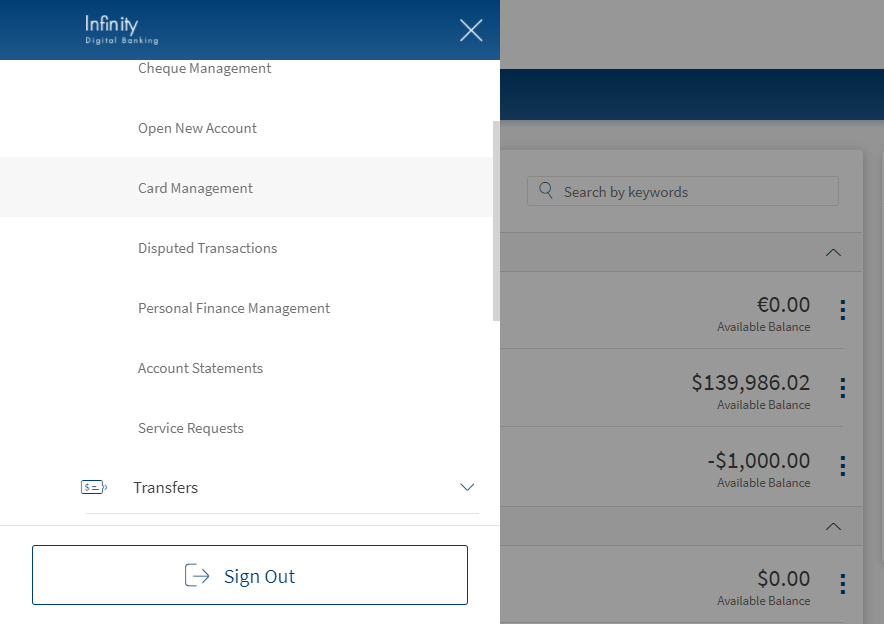
Menu path: Online Banking > Accounts and Services > Service Request
Mobile Banking > Accounts and Services > Service Request
 Multi entity support
Multi Entity Support: Customers can view the dashboard, perform transfers, or view any request summary and submit requests against the entity associated with the customer during login. The feature is enhanced with Experience APIs to retrieve and post based on the Entity ID of the signed-in user.
- The Entity ID selected by the signed-in user flows through the application through the respective Experience API.
- For all fetch (GET) API calls, the system retrieves the results based on the Entity ID of the signed-in user.
- For all add/update/delete calls, the system passes and posts requests against the Entity ID of the signed-in user.
The feature supports the following modules:
| Authentication | Dashboard | Account Overview |
| Credit Card overview | Cheque Management | Card Management |
| Statements | Dispute Transactions | Service Requests |
| PFM | Savings Pot | Account Settings |
| Sign In Settings | Profile Settings | Consent Management |
| Unified Transfers | Manage Transfers | Manage Beneficiaries |
| Bulk Payments | Bill Payments | Foreign Exchange |
| Portfolio Management | WealthOrder | Approval Matrix |
The Multi-Entity makes the application retrieve the service requests according to the selected entity. The SRMS requests are captured with respect to entity selection. For example, if the user creates a service request in Entity-1, the same request will not appear in Entity-2.
The application displays the list of service requests fetched from the Service Request Microservice (10 transactions by default).
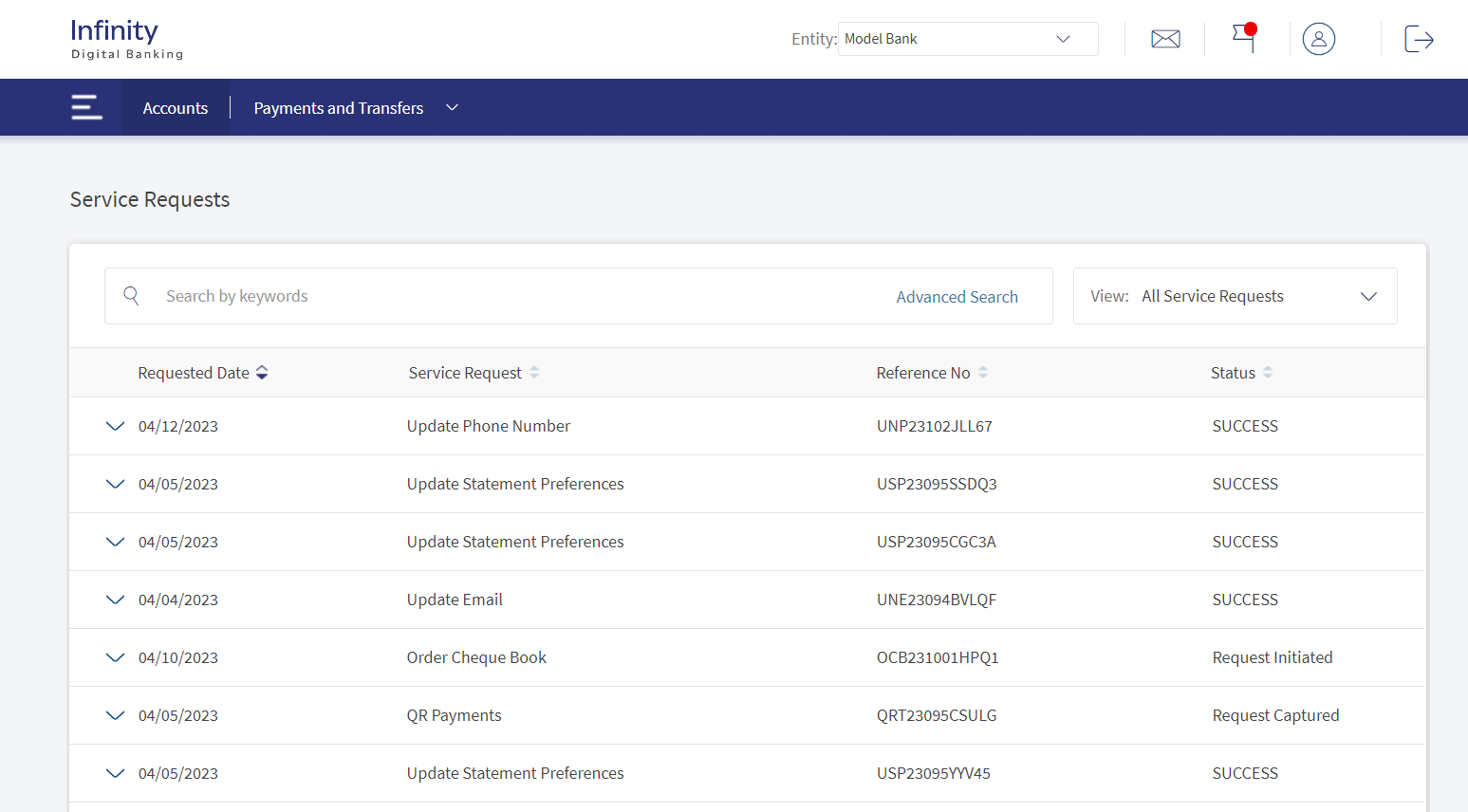
If no requests are retrieved from the banking service, the app displays a relevant message.
The following details are displayed:
- Requested Date
- Service Request
- Reference Number
- Status of the service request
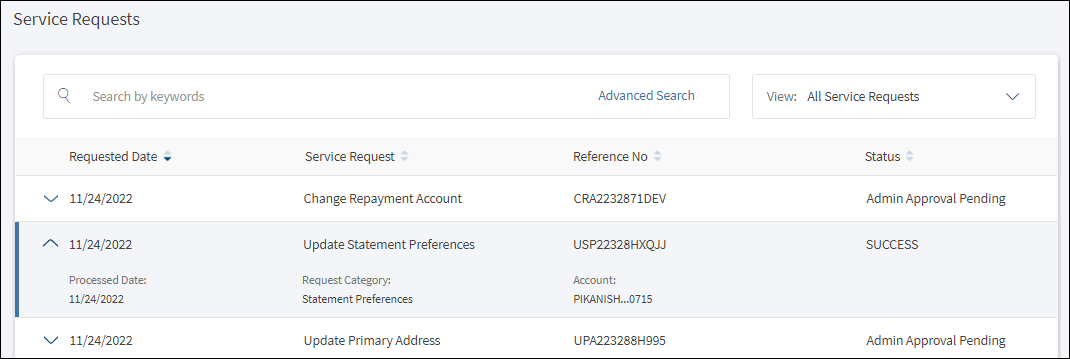
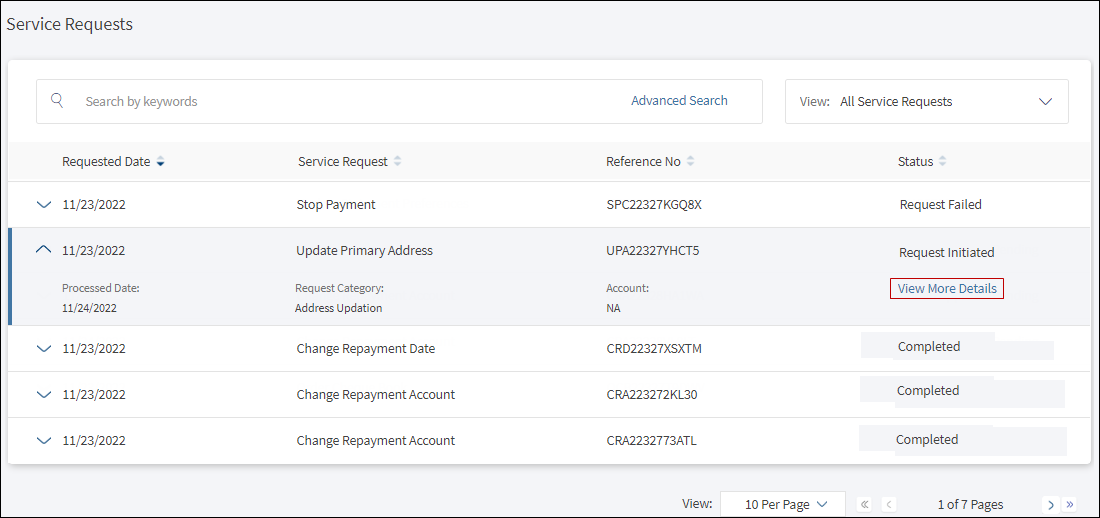
Use the down arrow to view further details of a request:
- Processed Date
- Request Category
- Account name and number
- Signatory Approval (if applicable)
- View More Details - Applicable only for requests such as change repayment day and change repayment account under a mortgage facility, and update primary address.
The list is sorted by Request Date by default, but you can sort the list based on any of the columns by using the sort  icon (
 denotes sorted by that column).
You can do the following on this screen:
Business Process Diagram - Service Request
Search for a Service Request
Use the feature to search for a service request using mentioned keyword and view the list of service requests for the provided search criteria.
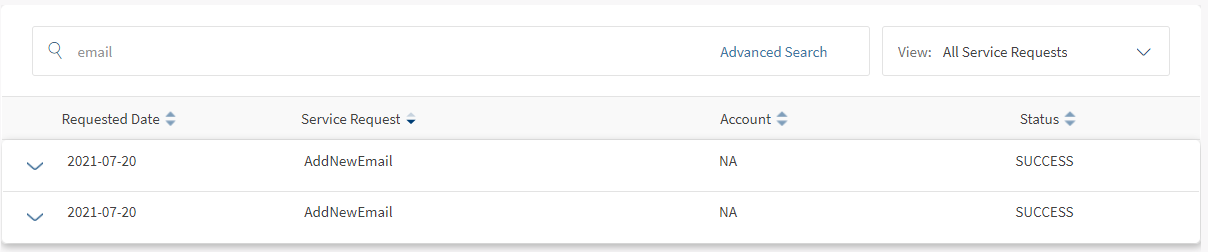
You can search for service requests by providing the following keywords:
- Request Subtype
- Reference ID
- Account ID
- Service Request Status
Filter Service Requests
Use the feature to filter the service requests from the list.
Click View from the top right to filter the service requests. Based on the selected filter, you can view the list of service requests.
For example, if you select Request Category as 'Manage Address', then the Service Request options displayed the request subtype under 'Manage Address' such as Add New Address, Update Address, Rename Address, and so on.
If no record is found for the selected criteria, an appropriate message is displayed.
Advanced Search
In the advanced search criteria section, you can specify the combine criteria or single criteria using these attributes:
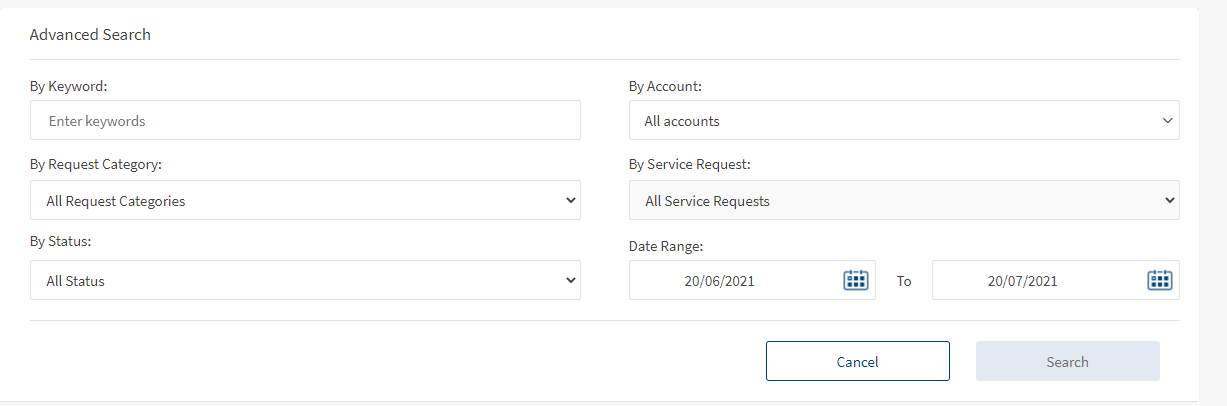
- By Keyword. Enter an appropriate keyword such as credit card, cheque book, and so on in this field.
- By Account. Select an account from the list of your accounts to search for the service requests created for an account.
- By Request Category. Select the required category type from the list to search based on types of categories such as cheque, recurring transfers, and so on.
- By Service Request. The service request options are listed based on the selected request category. Select a service request from the list to search based on the selected request category.
- By Status. Select the status from the list to search based on the status type.
- Date Range (requested date). Select the required date range in the Start date and End date fields to search for service requests based on a certain time. The service requests displayed is configured to three months, currently. You can configure the time based on the requirement.
Click Search to search for the records and the app displays all the service requests based on the specified search criteria. The app displays an appropriate message in case there are no service requests to retrieve.
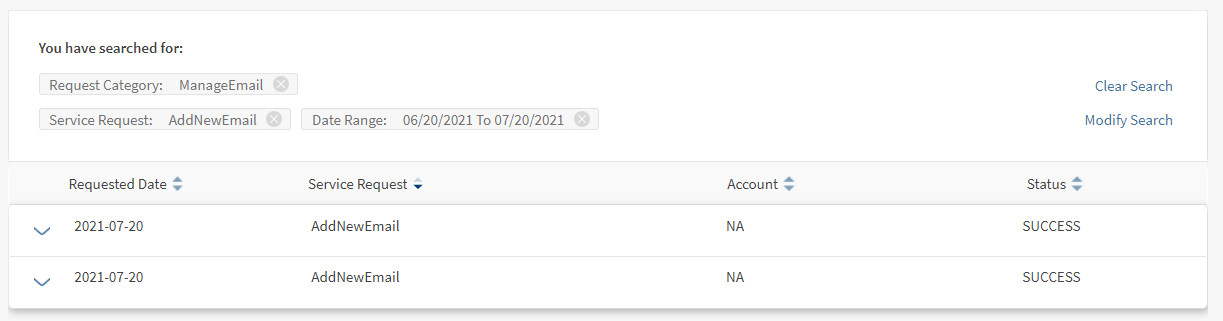
Once the results are displayed, you can do the following:
- Click Clear Search if you want to clear the current search. The app removes the current search criteria.
- Click Modify Search to modify the current search. The app navigates you to the advanced search criteria section.
View More Details (Change Repayment Day and Account and Update Primary Address)
Use the feature to view the request details for the following service requests:
- Change Repayment Day for the mortgage loan under a specific mortgage facility.
- Change Repayment Account for the mortgage loan under a specific mortgage facility.
- Update Primary Address for an account.
- Account Closure for current and saving accounts.
To view the details of the service request, follow these steps:
- On the service requests dashboard, click the down arrow of any specific request.
- Click View More Details.
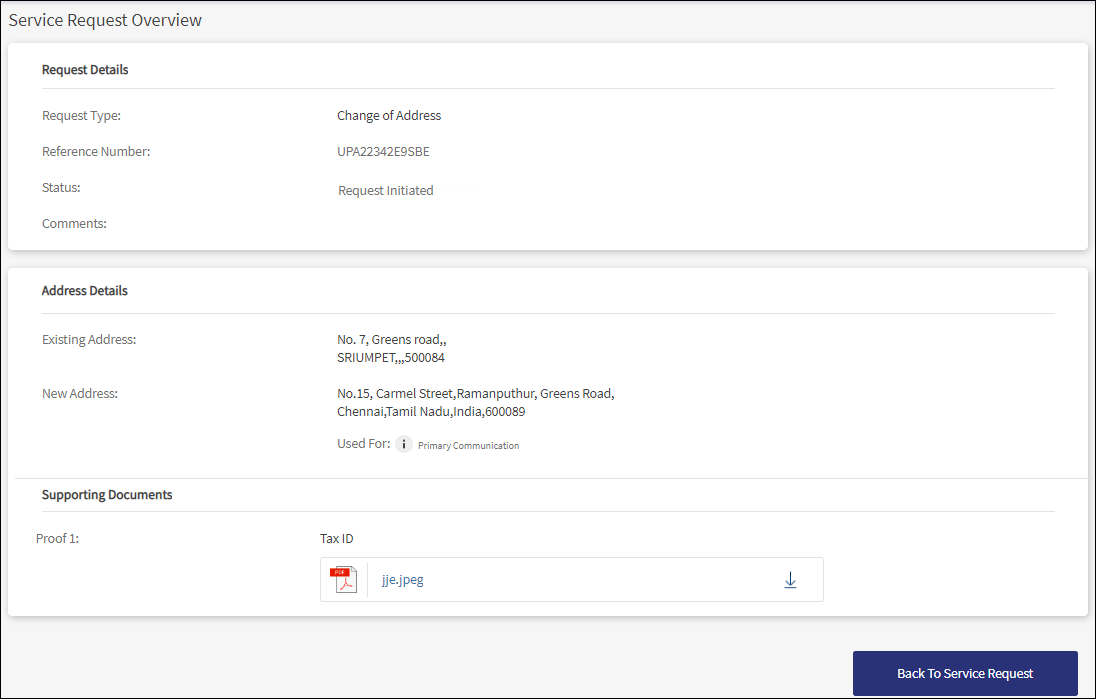
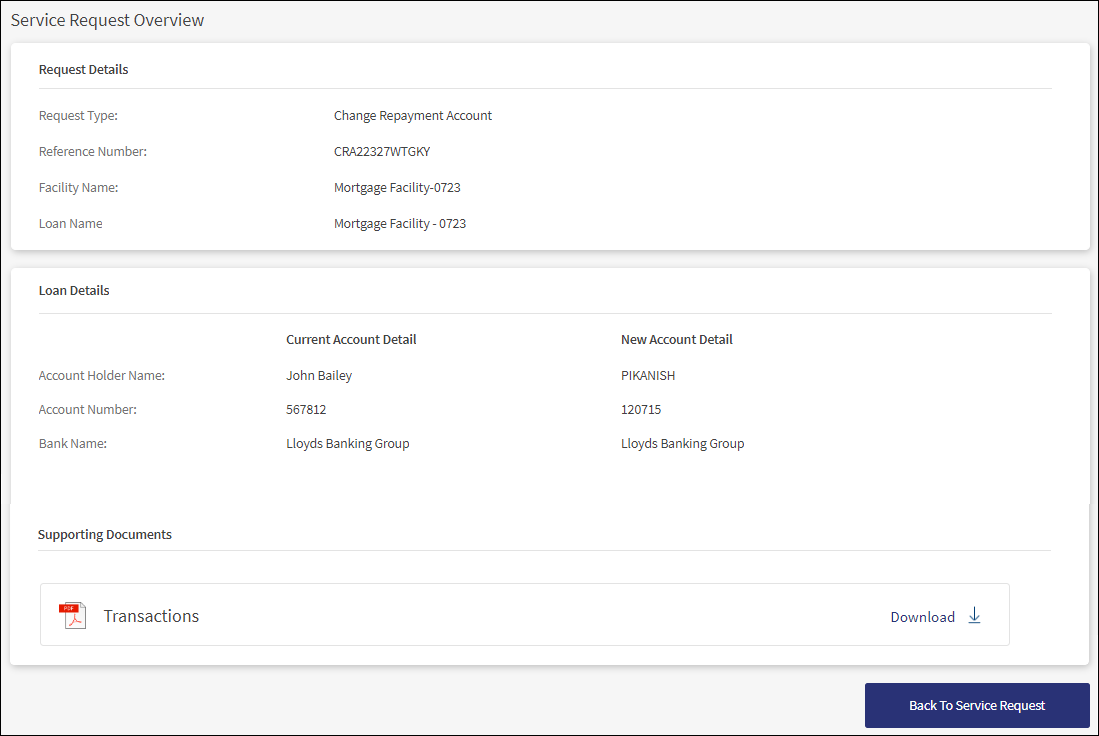
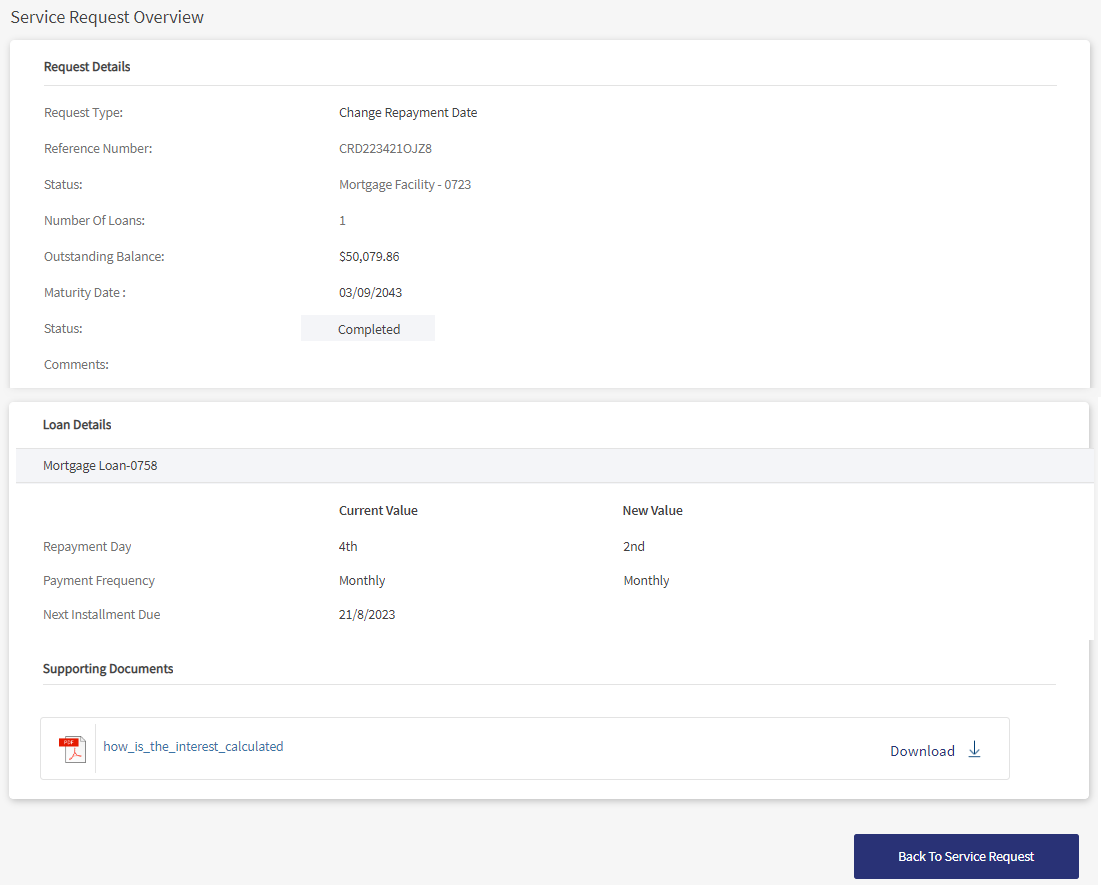
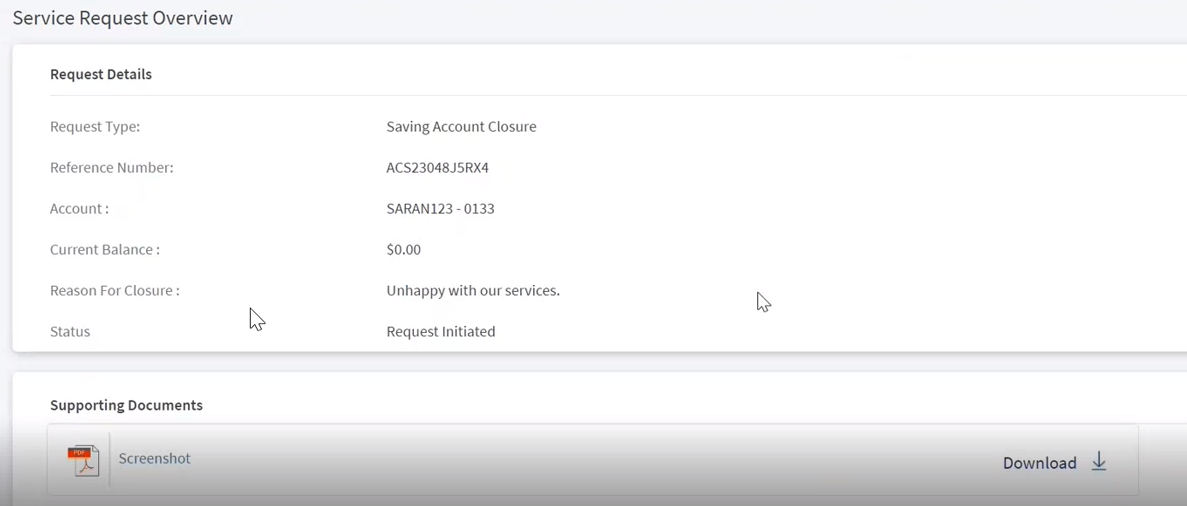
- The application displays the Service Request Overview screen with the following details depending on the selected request:
- Change Repayment Date
- Request Details: Request Type, Reference Number, Facility Name, Number of Loans, Outstanding Balance, Maturity Date, Status, and Comments.
- Loan Details: Repayment Day, Payment Frequency, and Next Installment Due with Current Value and New Value details.
- Supporting Documents: The list of documents if attached with the request with the provision to download the documents.
- Change Repayment Account
- Request Details: Request Type, Reference Number, Facility Name, and Loan Name.
- Loan Details: Account Holder Name, Account Number, and Bank Name with Current Account Details and New Account Details.
- Supporting Documents: The list of documents if attached with the request with the provision to download the documents.
- Change Address
- Request Details: Request Type, Reference Number, Status, and Comments.
- Address Details: Existing Address and New Address details.
- Supporting Documents: The list of documents if attached with the request with the provision to download the documents.
- Account Closure
- Request Details: Request Type, Reference Number, Account, Current Balance, Reason for Closure, and Status.
- Supporting Documents: The list of documents if attached with the request with the provision to download the documents.
- Change Repayment Date
- Click Back to Service Request to navigate back to the service request dashboard.
Integration of Service Request Microservice
- List of service requests created by the user are fetched by the service request microservice. The following details are fetched from SRMS.
- Requested Date
- Service Request ( Service Request name is the Request Sub Type of the request)
- Account ID
- Status
- Reference ID
- Request Category (Request Category is the Request Type of the request)
- Signatory Approval (if applicable)
- Last Processed Date (If it is available)
Configuration
- The number of service requests to be displayed on the screen is configured to one month, currently.
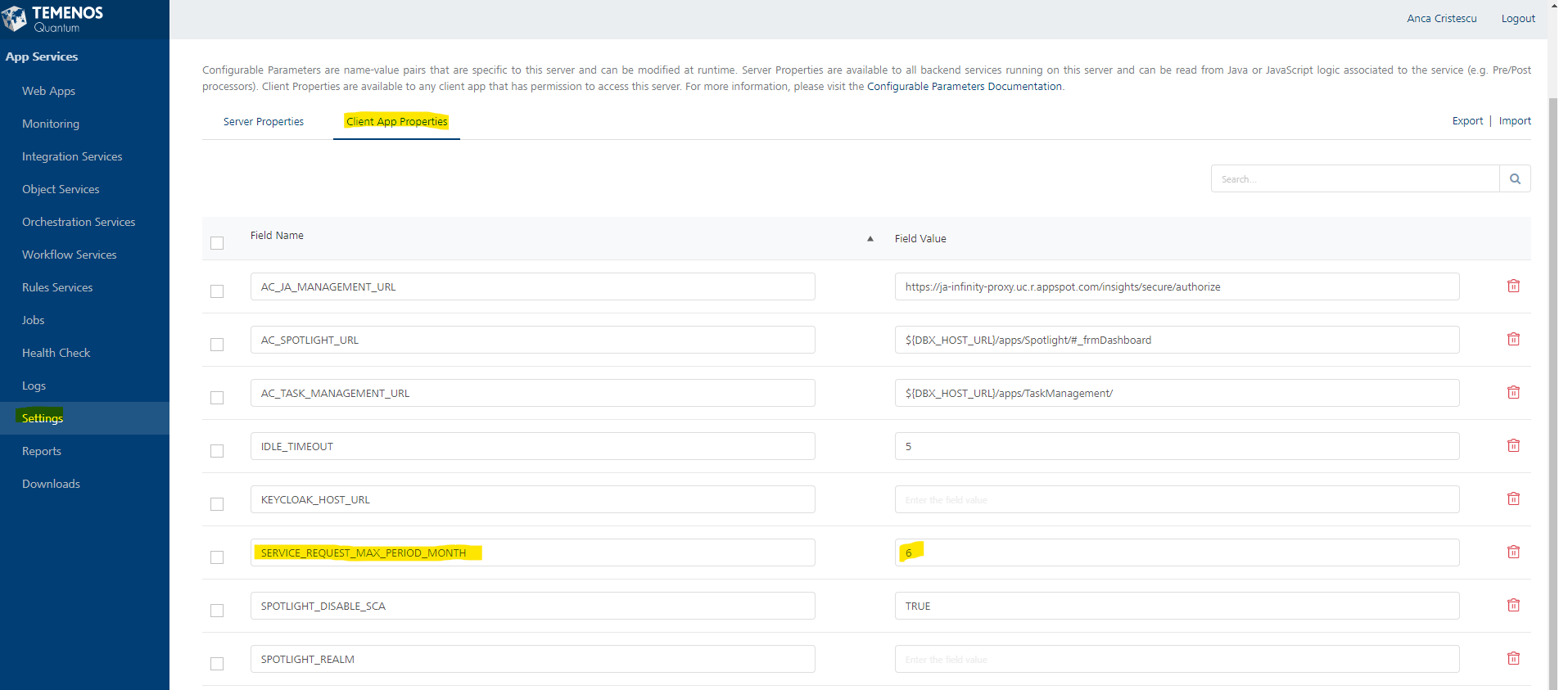
- You can configure the SERVICE_REQUEST_MAX_PERIOD_MONTH property from Client App Properties screen.
In this topic